Joining a Session
After the mentor starts the sessions, you can join:
- Public sessions to which you have enrolled or were invited by a session manager.
- Private sessions to which you were invited.
You can join a session in one of the following ways:
- Using the Enrolled sessions tab
- Using the All sessions tab
- Using the mentor profile
- Using the Session Details page
- Using the Search bar
- Private sessions to which you were invited are listed only on the Enrolled sessions tab.
- On the Enrolled sessions tab, you can click the session title to join the session using the Session Details page.
Using the Enrolled Sessions Tab
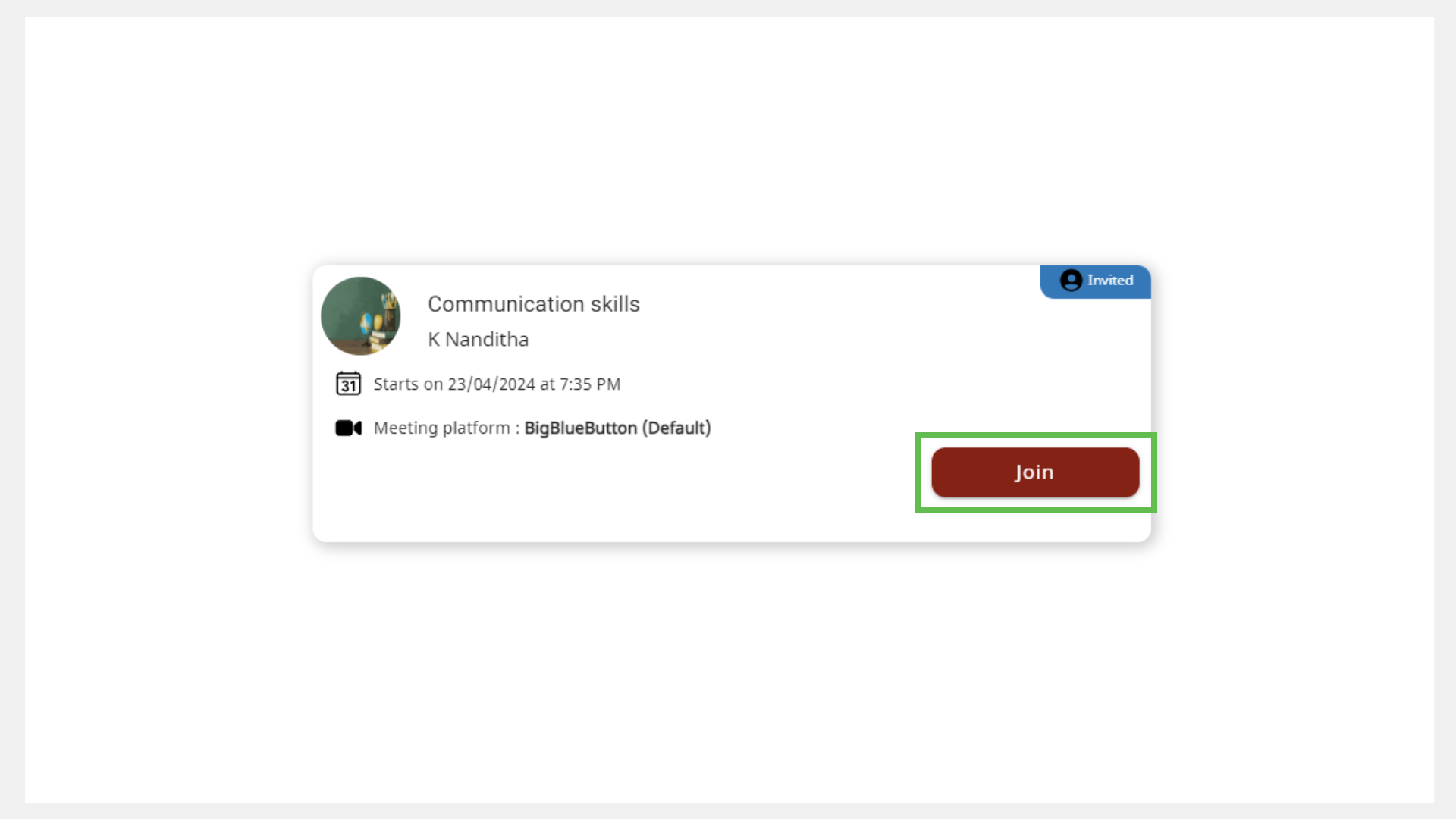
To look for sessions to which you were invited, check the session tile that is labelled as invited.
To join sessions using the Enrolled sessions tab, do as follows:
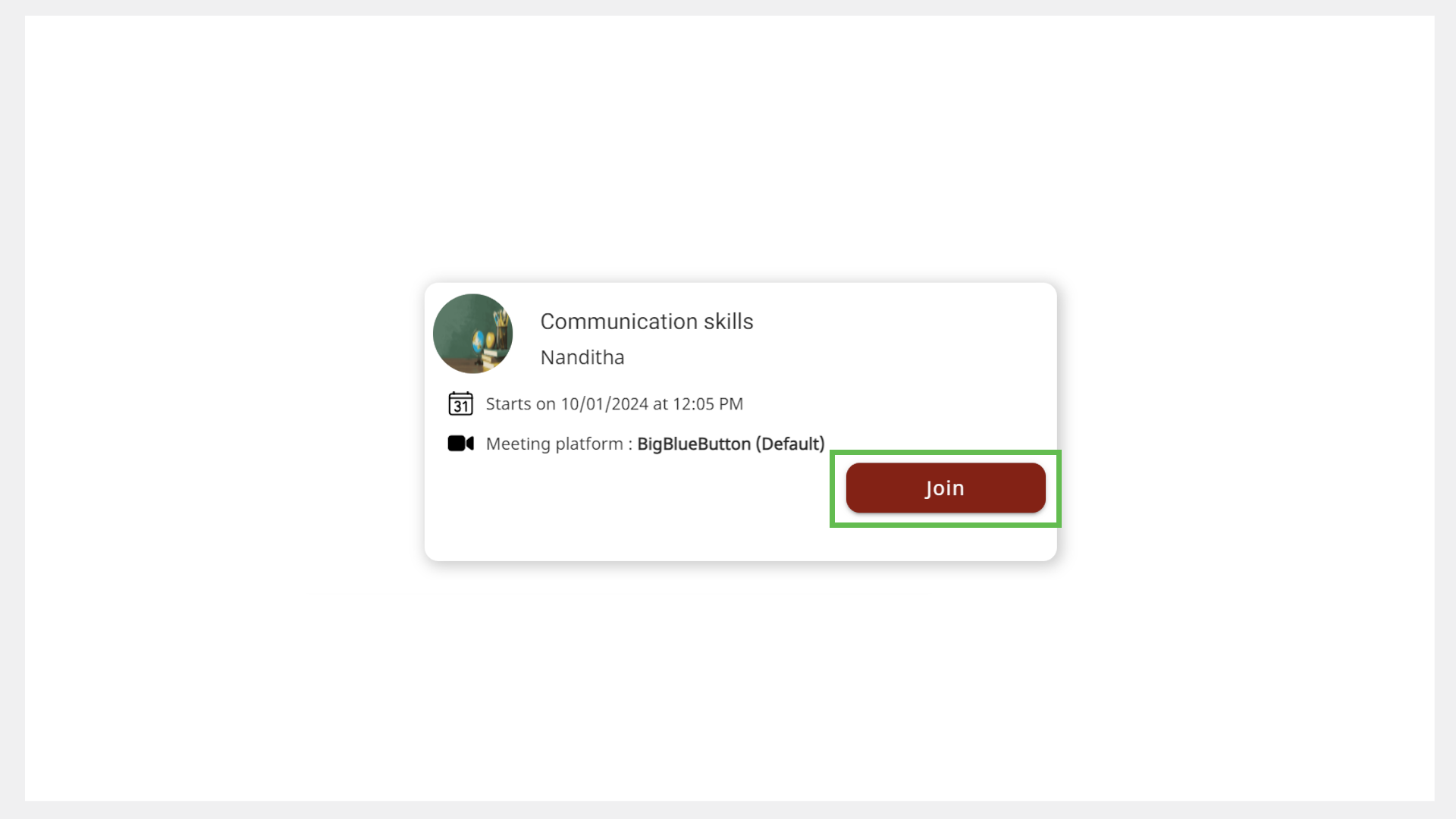
- On the Home page, go to the Enrolled sessions tab.
- Find the session.
- Click Join.
- Joining an Enrolled Session
- Joining an Invited Session
- On the dialog displaying the information about the meeting platform, do one of the following actions:
- If the meeting platform is BigBlueButton, click Join. The BigBlueButton window appears on your web browser.
- If the meeting platform is Google Meet, click Join. The Google Meet window appears.
- If the meeting platform is WhatsApp, click Join. The meeting appears on WhatsApp.
- If the meeting platform is Zoom, do one of the following actions:
- Click Join. The Zoom meeting window appears.
- Click Copy
 to copy the Meeting ID and Password and paste it on the Zoom app to join the meeting.
If an error occurs, go back to Mentor and click Join.
Using the All Sessions Tab
To look for sessions to which you were invited, check the session tile that is labelled as invited.
- On the Home page, go to the All Sessions tab.
- Find the session.
- Click Join.
- Joining an Enrolled Session
- Joining an Invited Session
- On the dialog displaying the information about the meeting platform, do one of the following actions:
- If the meeting platform is BigBlueButton, click Join. The BigBlueButton window appears on your web browser.
- If the meeting platform is Google Meet, click Join. The Google Meet window appears.
- If the meeting platform is WhatsApp, click Join. The meeting appears on WhatsApp.
- If the meeting platform is Zoom, do one of the following actions:
- Click Join. The Zoom meeting window appears.
- Click Copy to copy the Meeting ID and Password and paste it on the Zoom app to join the meeting.
Using the Mentor Profile
See Mentor Directory to learn more about accessing the mentor profile.
To join a session using the mentor profile, do as follows:
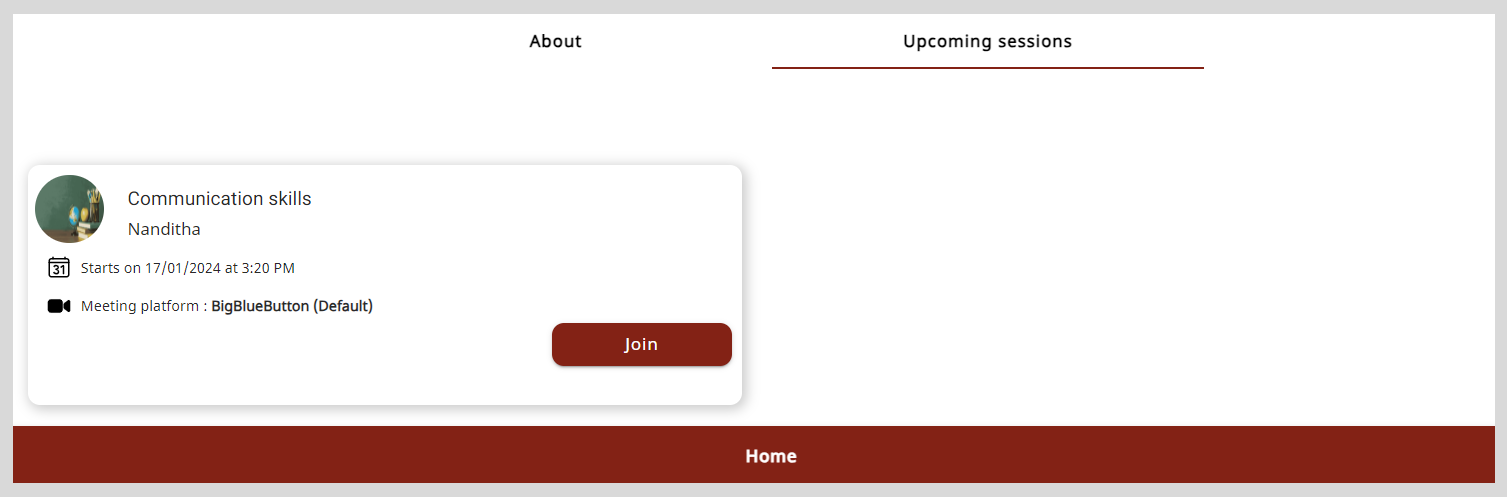
- On the Mentor Profile page, go to the Upcoming sessions tab.
- Click Join.
- On the dialog displaying the information about the meeting platform, do one of the following actions:
- If the meeting platform is BigBlueButton, click Join. The BigBlueButton window appears on your web browser.
- If the meeting platform is Google Meet, click Join. The Google Meet window appears.
- If the meeting platform is WhatsApp, click Join. The meeting appears on WhatsApp.
- If the meeting platform is Zoom, do one of the following actions:
- Click Join. The Zoom meeting window appears.
- Click Copy to copy the Meeting ID and Password and paste it on the Zoom app to join the meeting.
Using the Session Details Page
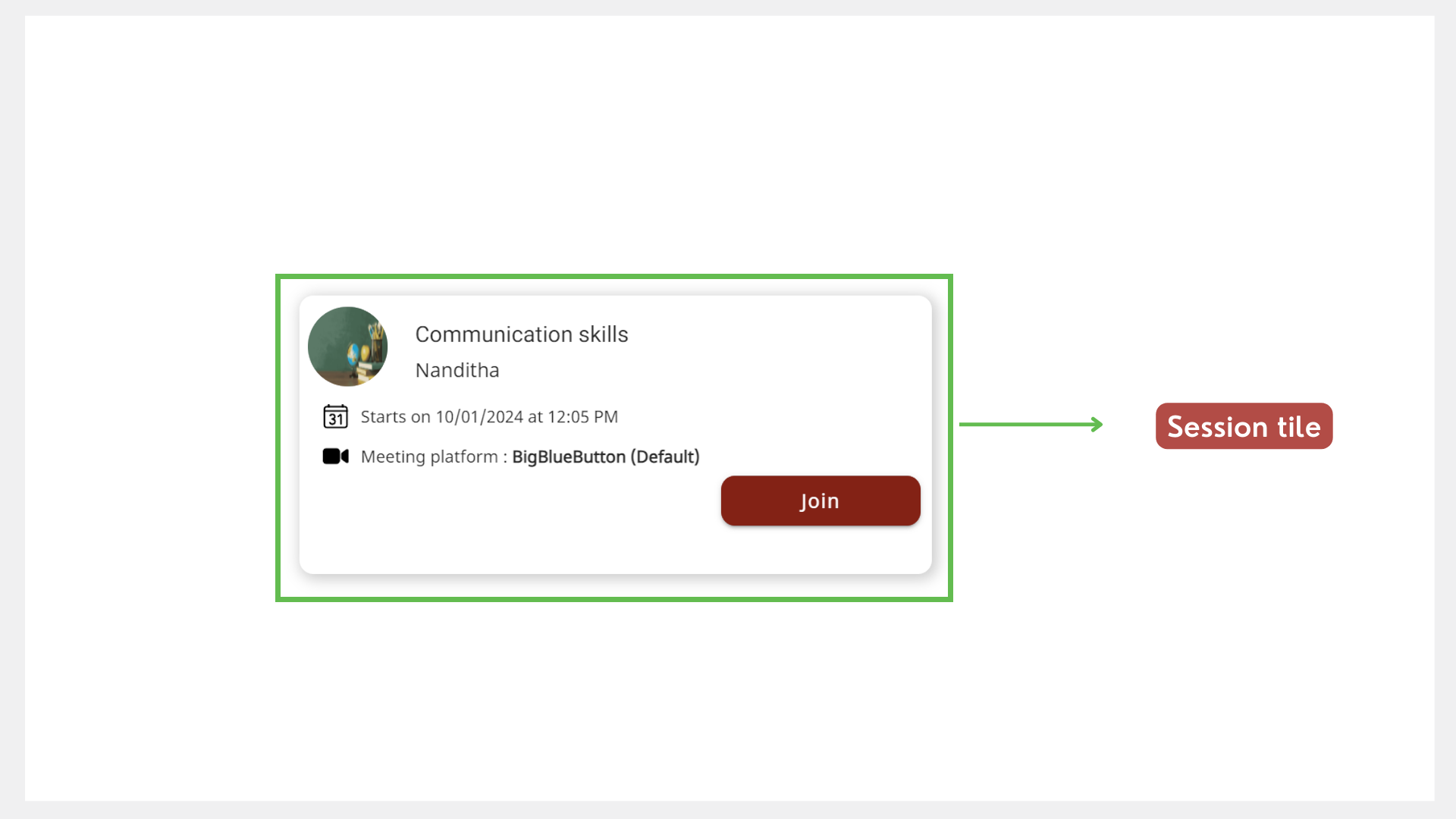
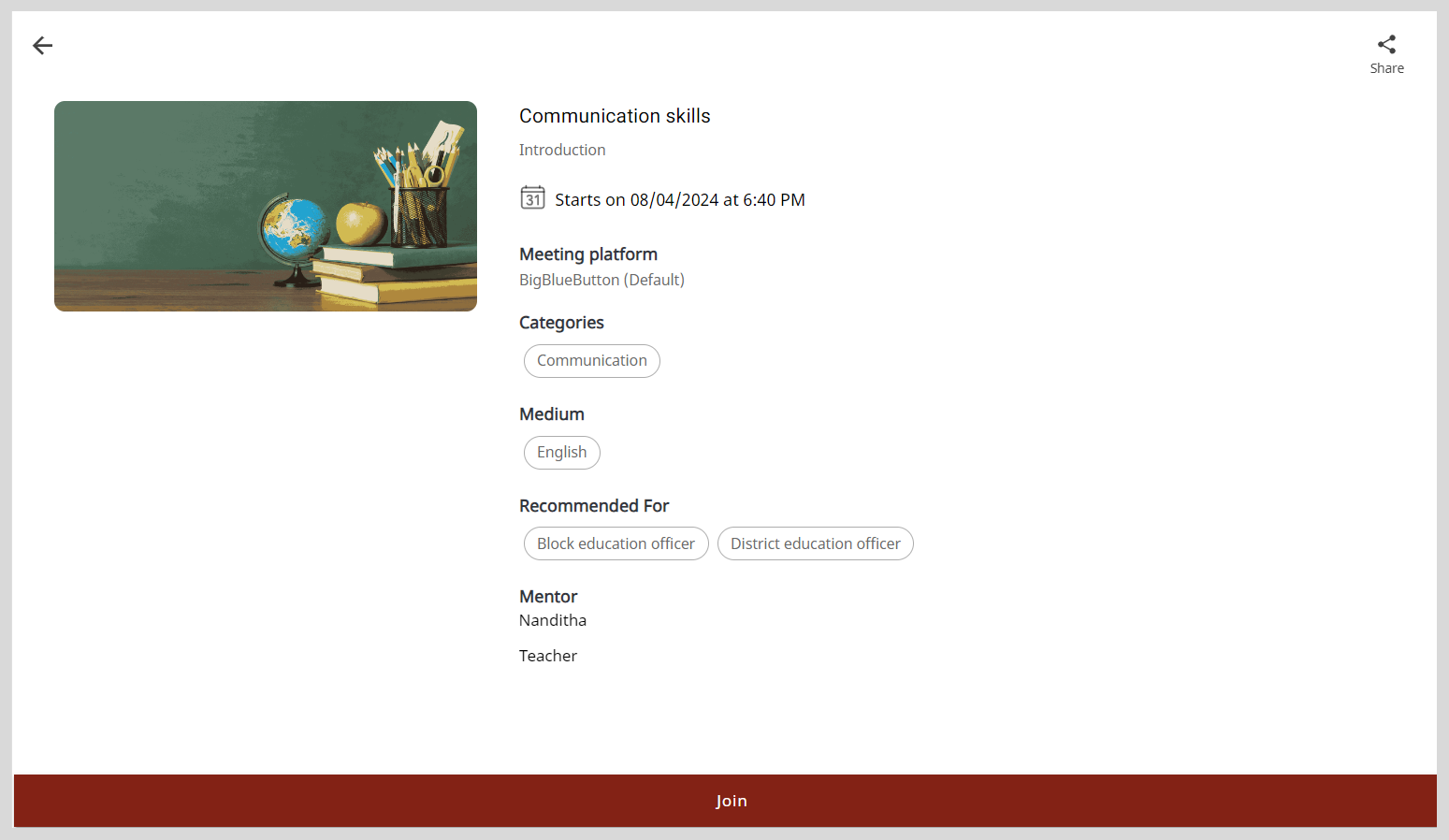
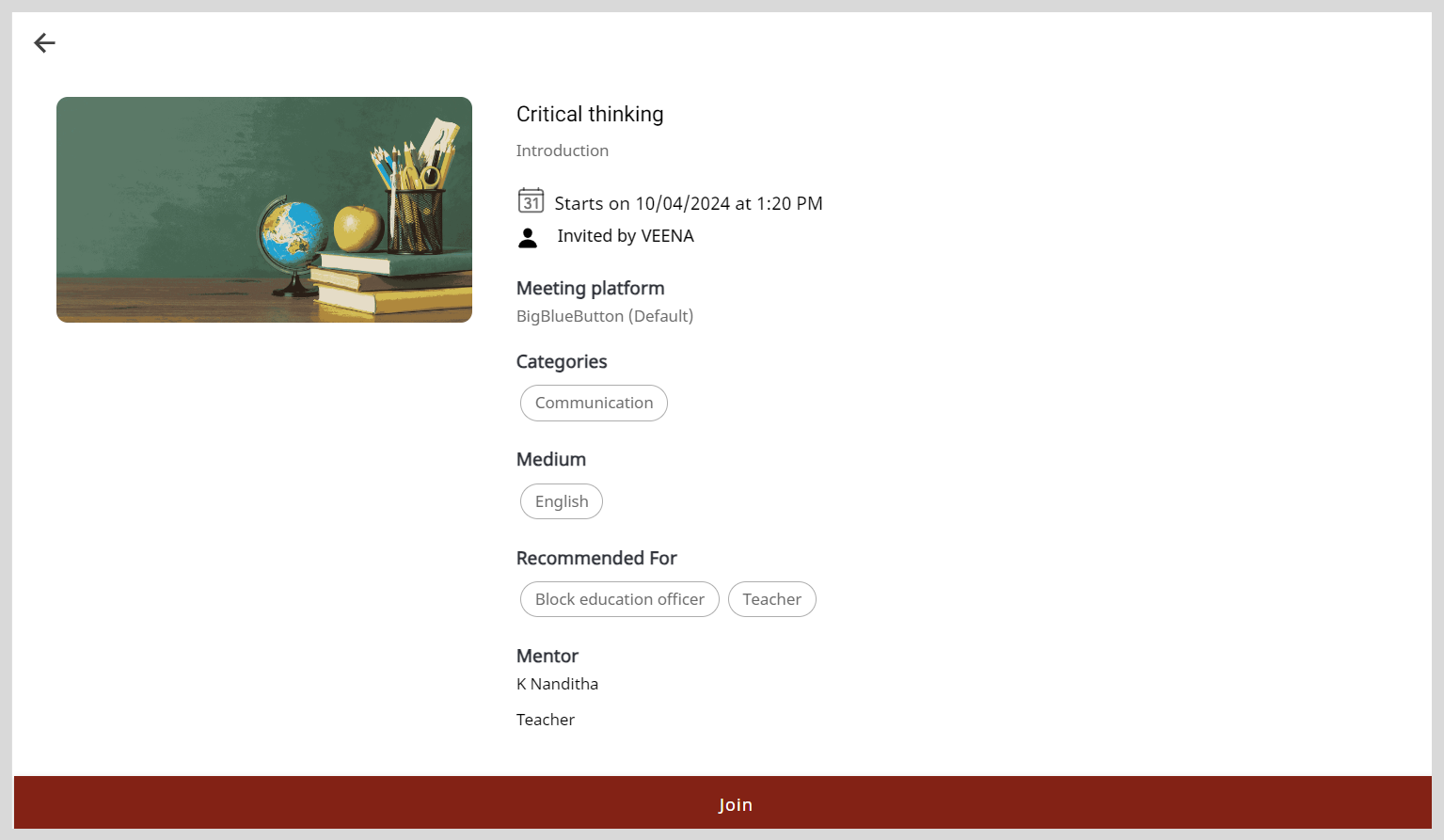
- Find the session from the All Sessions tab, Enrolled Sessions tab, or the Mentor Profile page.
- Click the session tile to view the Session Details page.
- Click Join.
- Joining an Enrolled Session
- Joining an Invited Session
- On the dialog displaying the information about the meeting platform, do one of the following actions:
- If the meeting platform is BigBlueButton, click Join. The BigBlueButton window appears on your web browser.
- If the meeting platform is Google Meet, click Join. The Google Meet window appears.
- If the meeting platform is WhatsApp, click Join. The meeting appears on WhatsApp.
- If the meeting platform is Zoom, do one of the following actions:
- Click Join. The Zoom meeting window appears.
- Click Copy to copy the Meeting ID and Password and paste it on the Zoom app to join the meeting.
Using the Search bar
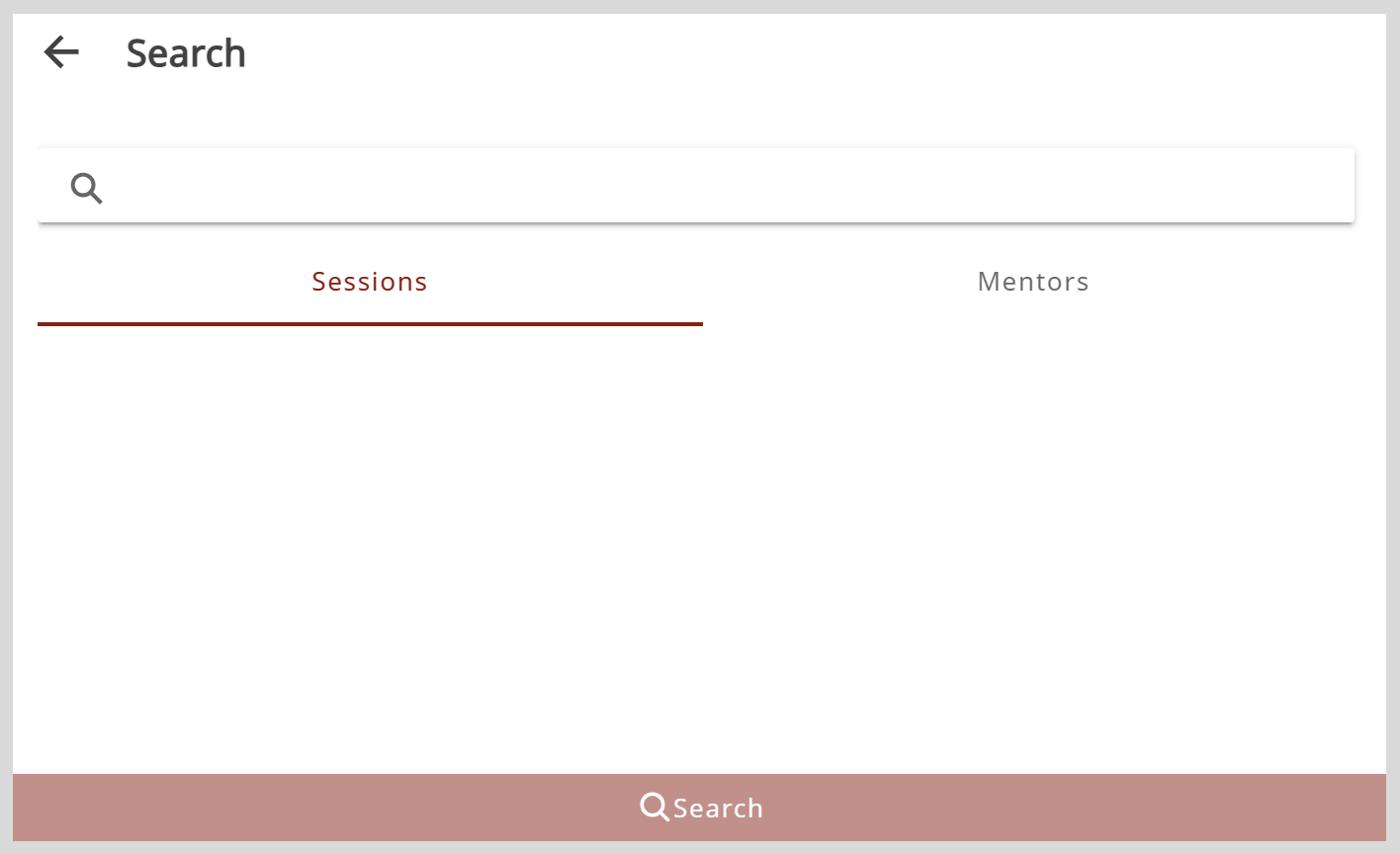
- In the Search bar of the Home page, click the Sessions tab.
- Type the session name and click the Search button.
- Click Join.
- On the dialog displaying the information about the meeting platform, do one of the following actions:
- If the meeting platform is BigBlueButton, click Join. The BigBlueButton window appears on your web browser.
- If the meeting platform is Google Meet, click Join. The Google Meet window appears.
- If the meeting platform is WhatsApp, click Join. The meeting appears on WhatsApp.
- If the meeting platform is Zoom, do one of the following actions:
- Click Join. The Zoom meeting window appears.
- Click Copy to copy the Meeting ID and Password and paste it on the Zoom app to join the meeting.
To configure the meeting settings, see any one of the following sections:
- BigBlueButton Tutorials. To view the tutorials, go to the Teachers menu and select Tutorials.
- Google Meet Support
- WhatsApp Help Center
- Zoom Support Center
Usage Guidelines
Unmute your microphone only when necessary.
Maintain a neat background and attire before you turn on your webcam.
Use respectful language while sharing any information.
If you leave a BigBlueButton meeting unintentionally (by pressing the back key on your phone or closing the meeting tab), go back to Mentor and click Join.