Managing Sessions Assigned to Mentors
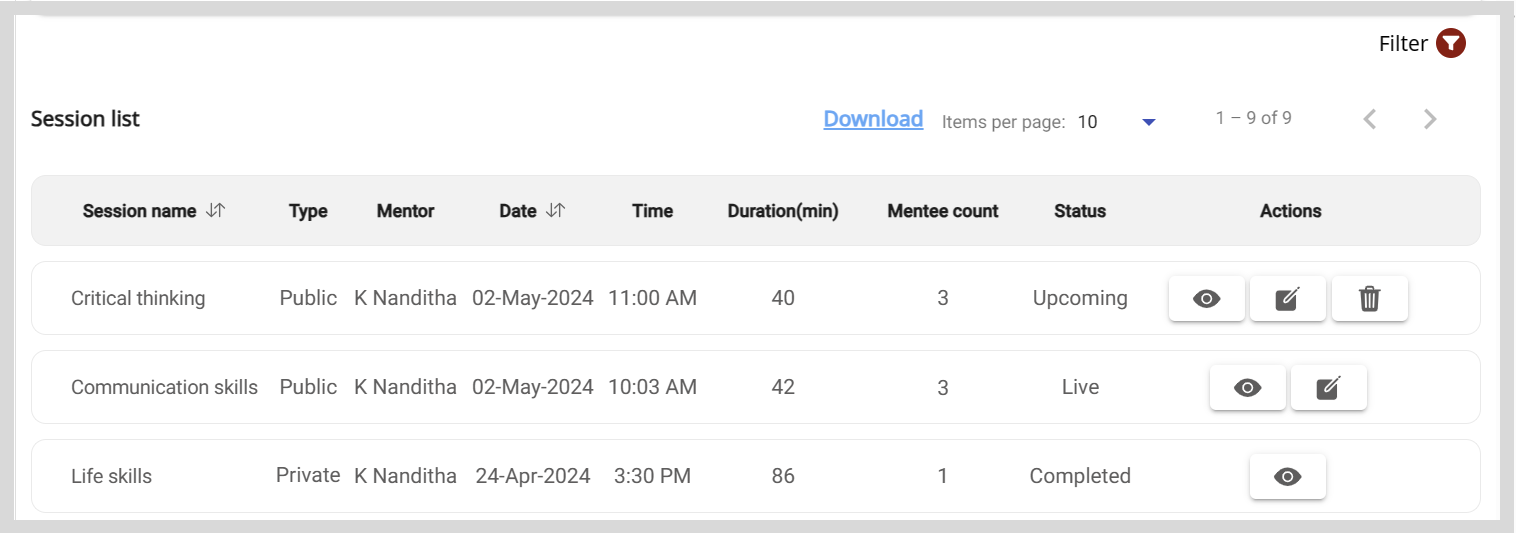
On the Session list section, session managers can carry out the following activities:
- View the details such as the session's schedule, the number of enrollments, and the type of session.
- Track the session's progress using the following session statuses:
- Upcoming: The mentor is yet to host the session.
- Live: The mentor has started the session.
- Completed: The mentor completed the session.
- Edit the session information.
- Delete the session.
To view the Session list section, do as follows:
Do one of the following actions:
Select Workspace from the Application menu.
Go to the Application menu
 and select Workspace.
Click Manage sessions. The Session list section appears.
tipFrom the list, you can find sessions by:
- Using filters such as the status or type of session.
- Changing the number of sessions listed on the page using the Items per page dropdown.
Click the Download link to download the session list as a CSV file.
Tracking the Number of Enrollments
You can view the number of mentees who have enrolled or those who were invited to the session.
On the Session list section, do any one of the following actions:
View the Mentee count value.
Click
 and view the Mentee count value on the Session Details page.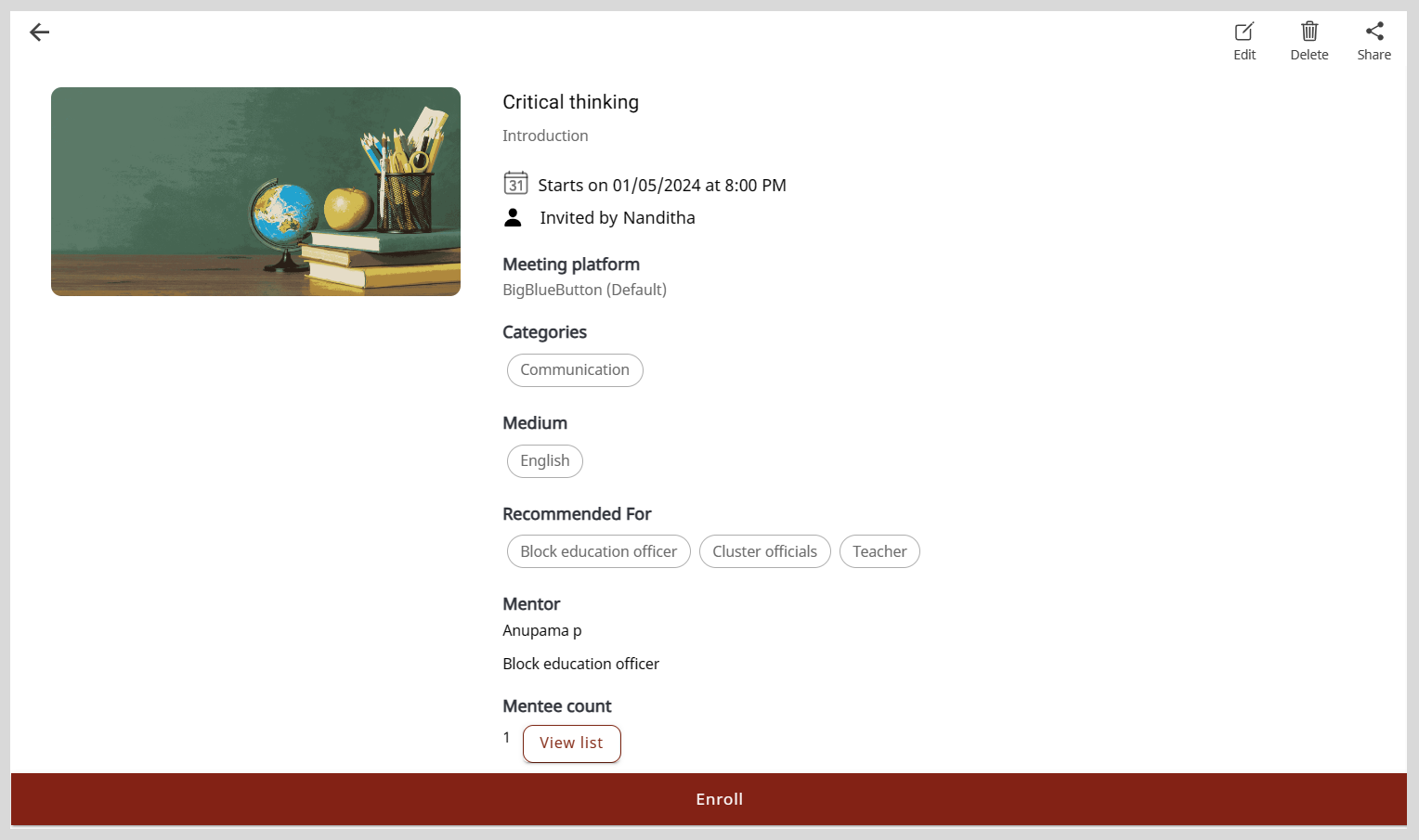
Viewing the List of Mentees
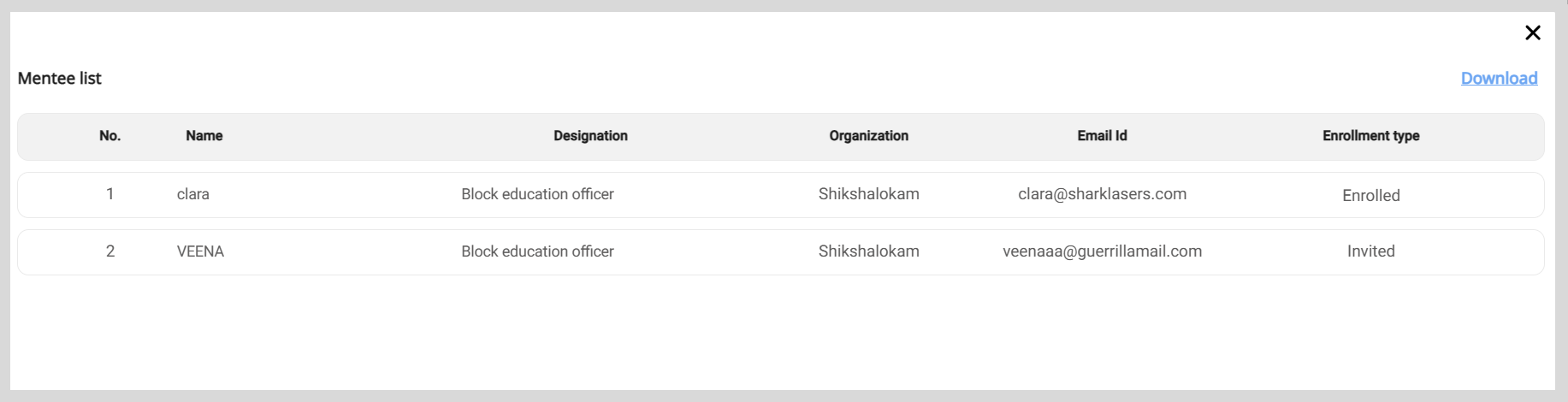
On the Mentee list window, you can do the following actions:
- View mentees' details.
- Check whether the mentees have enrolled for the session or have been invited to the session.
To view the list of mentees, do as follows:
On the Session list section, find a session and click the Mentee count value. The Mentee list window appears.
tipClick the Download link to download the mentee list as a CSV file.
Do the following actions:
Click
. The Session Details page appears.Click View list. The Mentee list window appears.
tipClick the Download link to download the mentee list as a CSV file.
Viewing the Mentor Profile page
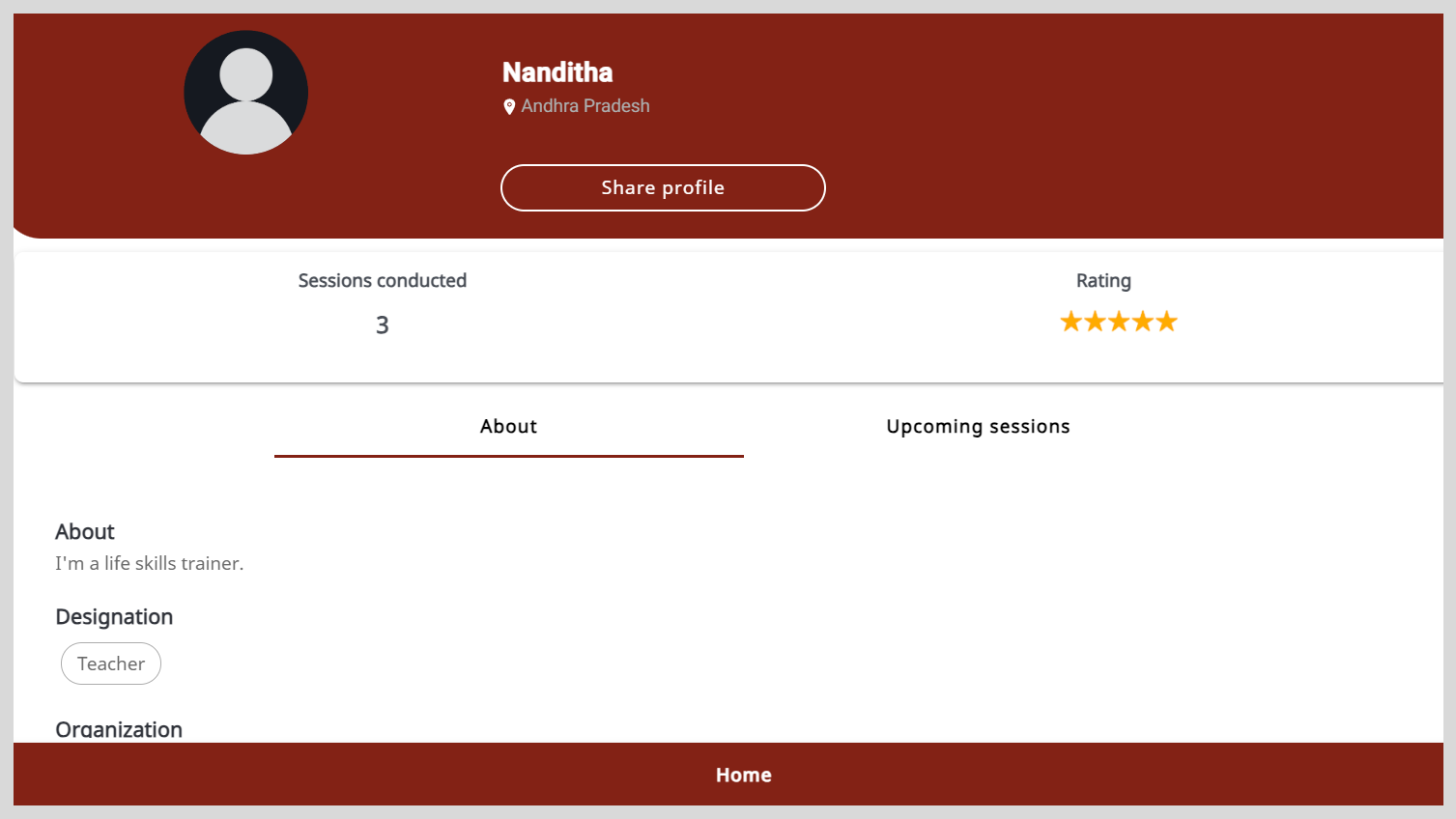
On the Mentor Profile page, you can view a mentor's details such as the number of sessions hosted and the rating received for sessions.
To view the Mentor Profile page, click the mentor's name on the Session list section.
Editing a Session
To view the Edit session details page, do one of the following actions:
In the Session list section, click
 .
.Do the following actions:
On the Session list section, click
. The Session Details page appears.Click Edit.
Editing the Session Information
You can edit the session details only until the mentor starts the session.
To edit the session information, do as follows:
On the Edit session details page, go to the Edit session tab.
Make the necessary changes to:
The session information.
The list of mentees who were invited to the session. To update the list, do any one of the following actions:
- To invite new mentees, click + Add New Mentee and add mentees from the list.
- To remove mentees from the list, click the mentee's name and click Remove on the Mentee list window.
The session image. To update the session image click Add image and do one of the following actions:
To take a picture, select Take Photo.
To upload an image, select Choose from library.
To remove the existing image, select Remove current photo.
tipSelect an image that is relevant to the session topic.
Click Save. The session details are updated.
Editing the Meeting Information
You can edit the meeting information even after the mentor has started the session.
To edit the meeting information, do as follows:
On the Edit Session Details page, go to the Meeting link tab and make the necessary changes.
Click Submit. The meeting information is updated.
Deleting a Session
You can delete the session only until the mentor starts the session.
To delete the session, do as follows:
To delete the session, do one of the following actions:
In the Session list section, click
 .
.Do the following actions:
Click
. The Session Details page appears.Click Delete.
Click Yes delete on the confirmation dialog. The session is cancelled and is removed from the Session list section.