Setting up a Session
To share your skills and knowledge with your mentees, you can create a Mentor session and add requisite details such as:
- The topic for the session
- The session schedule
- A creative graphic or image to attract the attention of mentees
- The meeting platform
To create a session, do as follows:
- On the Home page, go to the Created sessions tab.
- Click Create session.
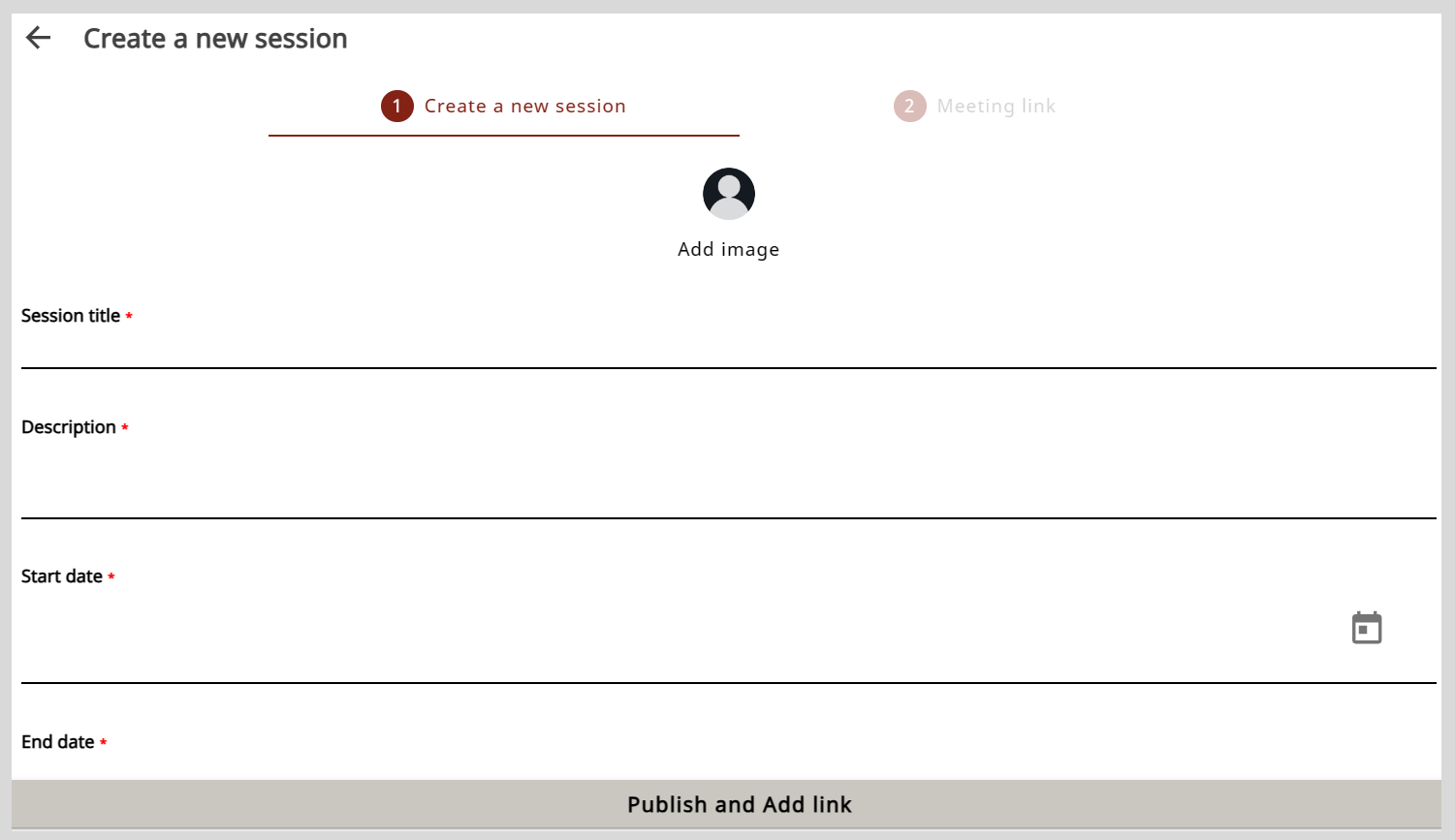
- Optionally, to add a session image, click Add image and do one of the following actions:
- To take a picture, select Take Photo.
- To upload an image, select Choose from library.
- Enter the session information in the Session title and Description boxes.
- To schedule a session, do as follows:
- Click the Start date and End date boxes.
- Select the date and time from the date and time picker.
- Click
 .
. - Select an option from the following boxes:
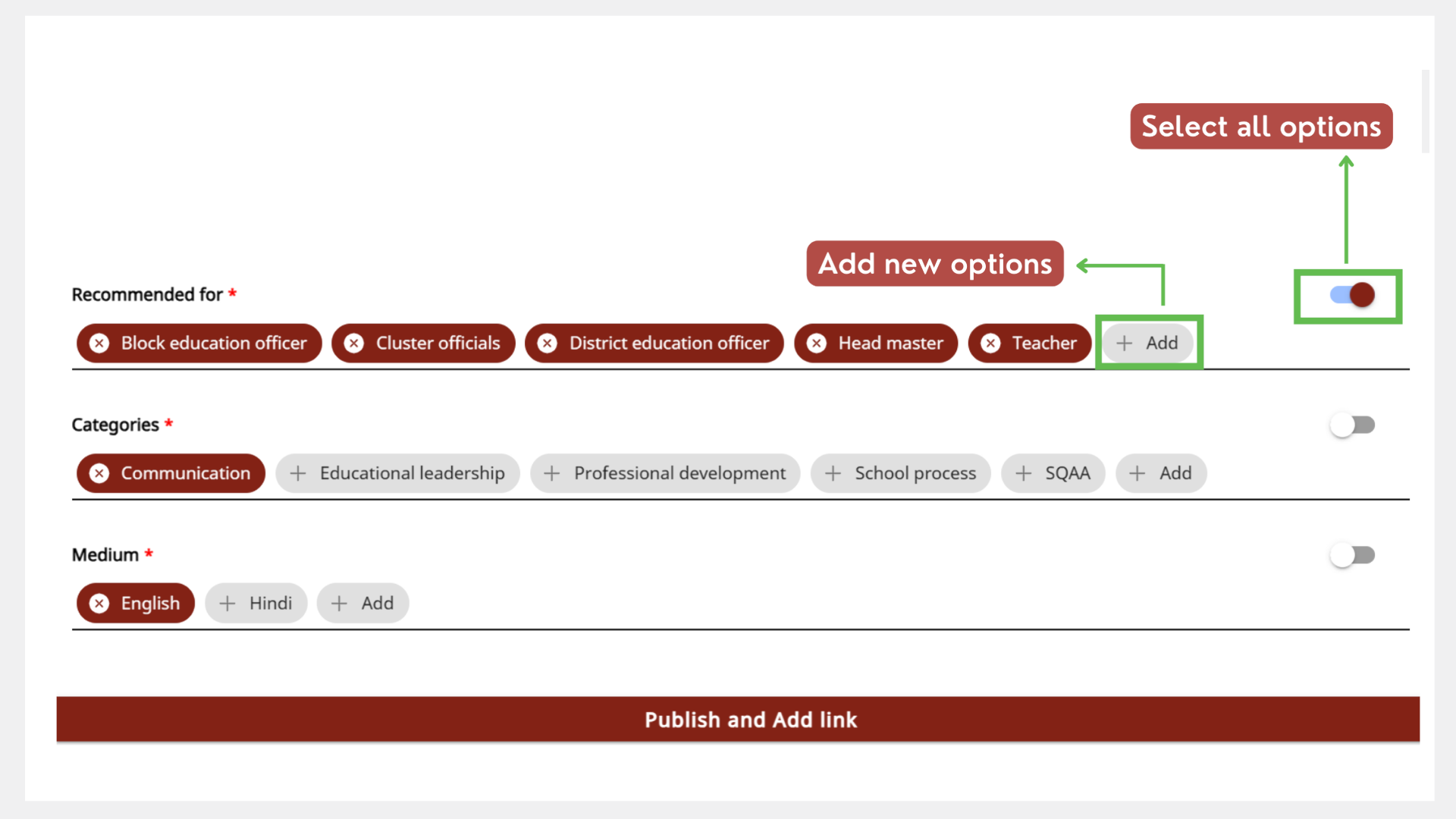
- Recommended for
- Categories
- Medium
- To cancel the selection, click the option again.
- To add a new option, do as follows:
- Click + Add and enter the new option.
- Click Ok.
- To select all the options, turn on the toggle.
- Click Publish and add link. The session is published on the platform and participants can now view your session.
- Go to the Edit session tab.
- Make the necessary changes and click Save.
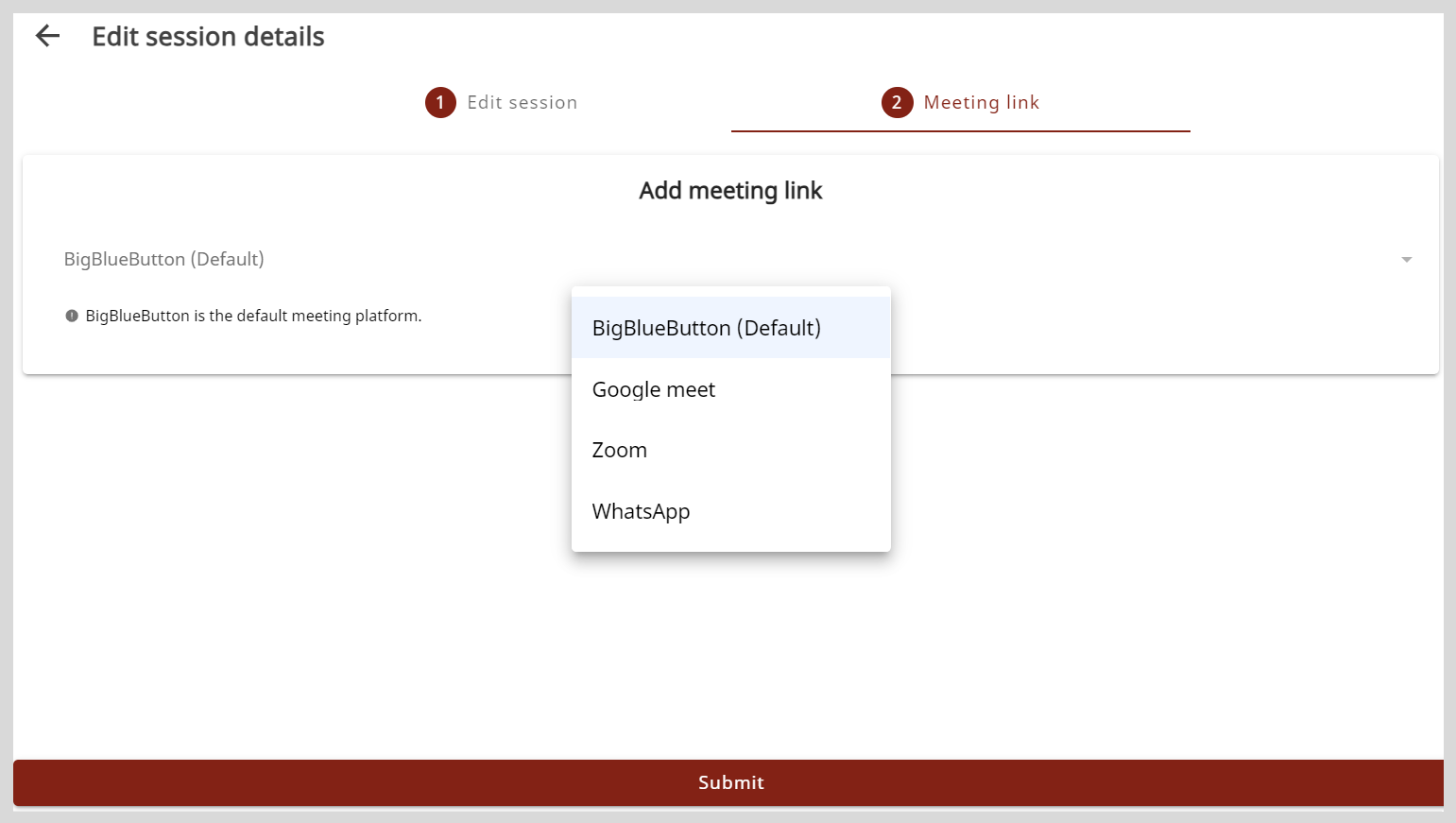
- On the Meeting link tab, select a meeting platform from the Add meeting link menu.
- Copy and paste the meeting link in the Zoom link box.
- Copy and paste the meeting ID in the Meeting ID box.
- Copy and paste the passcode in the Passcode box.
- Click Submit. The meeting information is added.
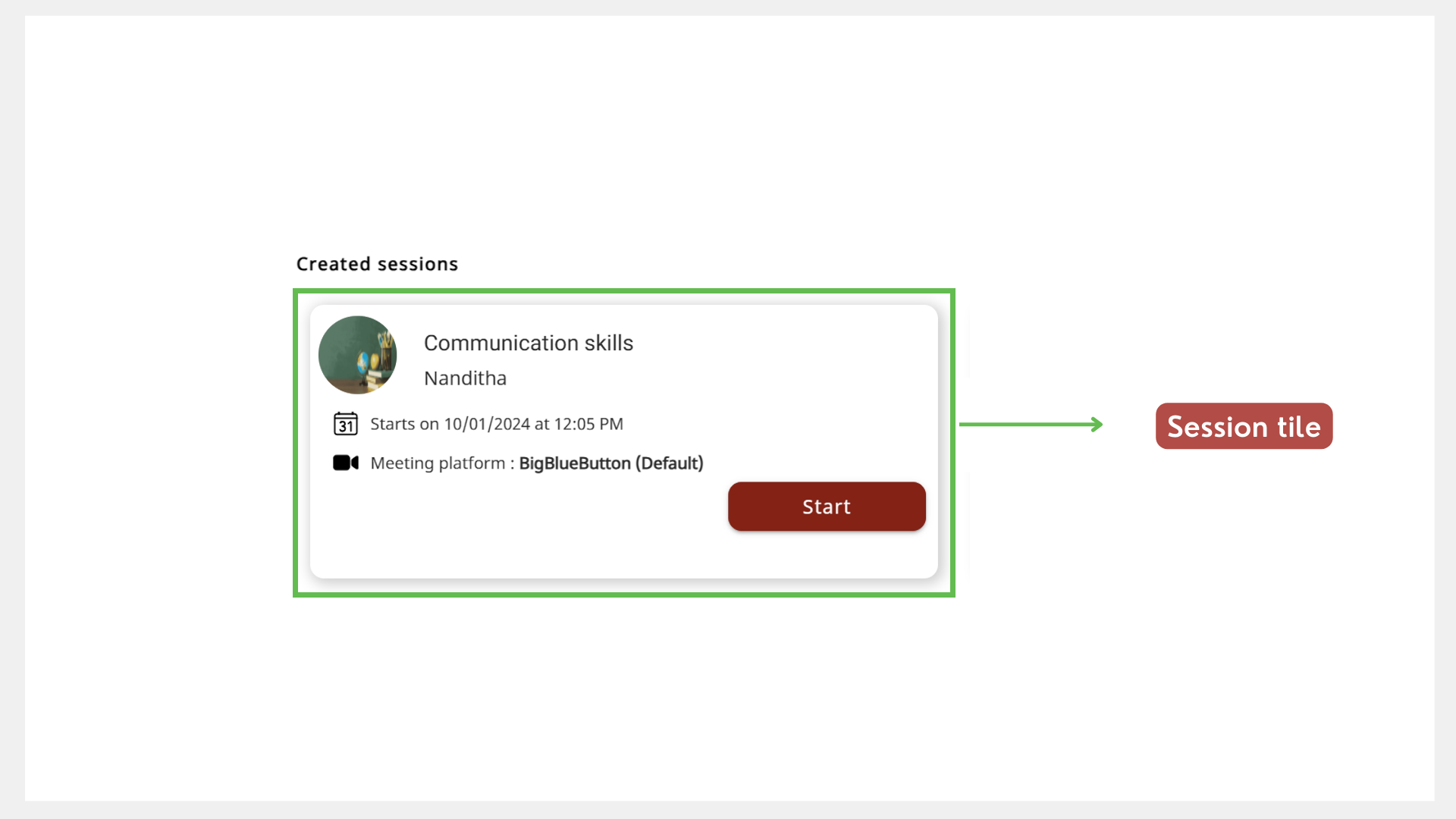
- You can find the new sessions on the Created sessions tab on the Home page.
- To create more sessions, click the Create session button and repeat steps 1 to 9.
- You can also find your completed sessions in the Created sessions section of the Created sessions tab.
tip
Select an image that is relevant to the session topic.
note
The session duration should be at least 30 minutes.
tip
note
You must set the meeting platform on the Meeting Link tab.
tip
To go back and edit the session details, do as follows:
note
If you haven't selected a meeting platform, BigBlueButton is set as the default platform.
| Meeting Platform | Meeting Information |
|---|---|
| BigBlueButton | No action required. |
| Google Meet | Copy and paste the call link in the Meet link box. |
| Copy and paste the call link in the WhatsApp box. | |
| Zoom | Do the following actions: |
tip
Editing a Session
note
If you want to edit the session details, you must do so at least 10 minutes before the start time.
- To edit the session details, click the session tile to view the Session Details page.
- Click Edit. The Edit session details page appears.
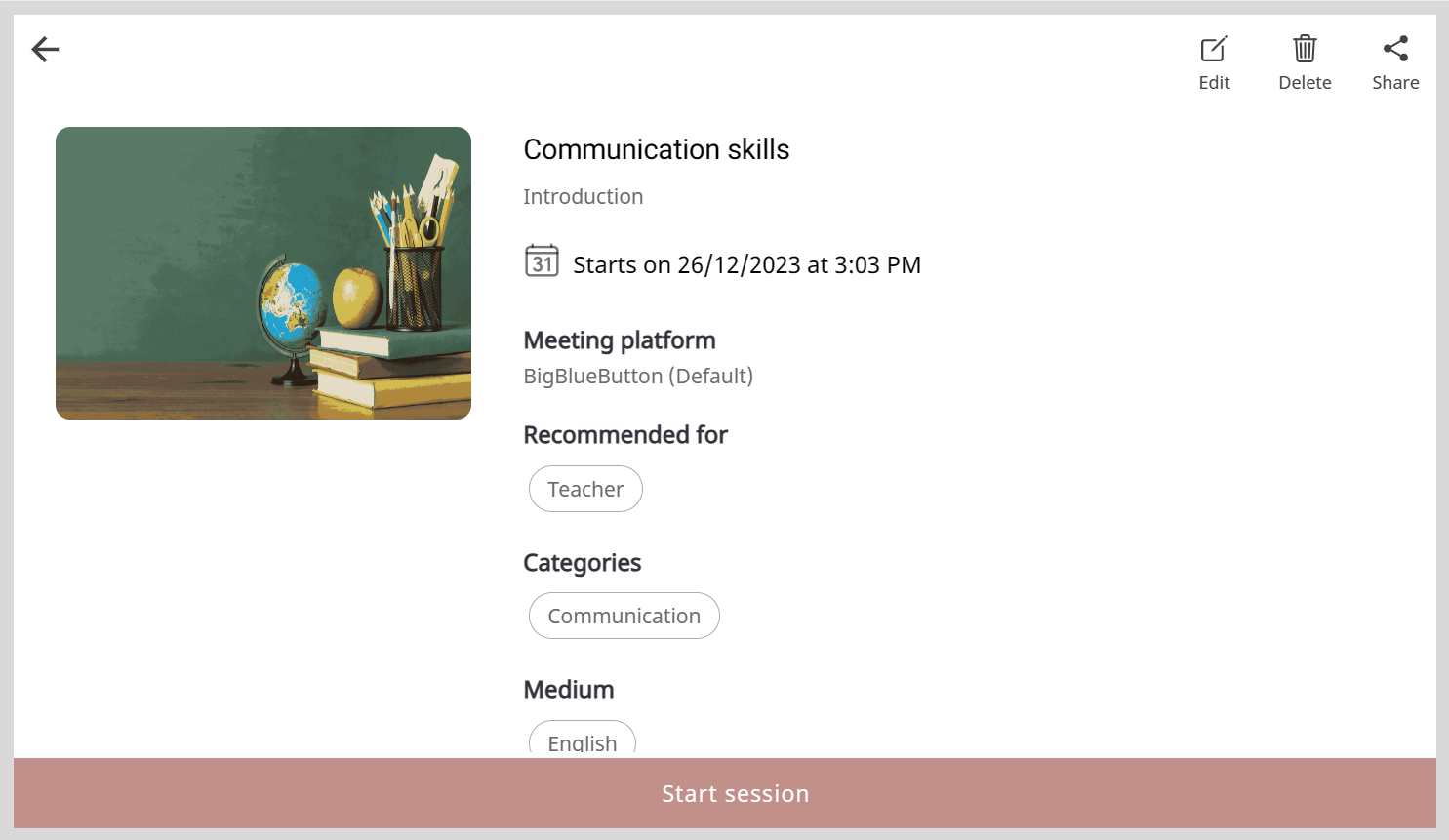
Editing the Session Details
- On the Edit session details page, go to the Edit session tab.
- Make the necessary changes to the session information.
- Optionally, to update your session image, click Add image and do one of the following actions:
- To take a picture, select Take Photo.
- To upload an image, select Choose from library.
- To remove the existing image, select Remove current photo.
- Click Save. The session details are updated.
tip
Select an image that is relevant to the session topic.
Editing the Meeting Information
- On the Edit Session Details page, go to the Meeting link tab and make the necessary changes.
- Click Save. The meeting information is updated.
Deleting a Session
note
If you want to delete the session, you must do so at least 10 minutes before the start time.
To delete the session, do as follows:
- Click the session tile and click Delete.
- Click Yes delete on the confirmation dialog. The session is cancelled and is removed from the Created sessions tab of the Home page.