Creating and Managing a Mentor Profile
On the Profile page, you can do the following actions:
- Update your profile details to help mentees get to know you.
- View the number of sessions conducted.
- View your session ratings.
Viewing the Profile Page
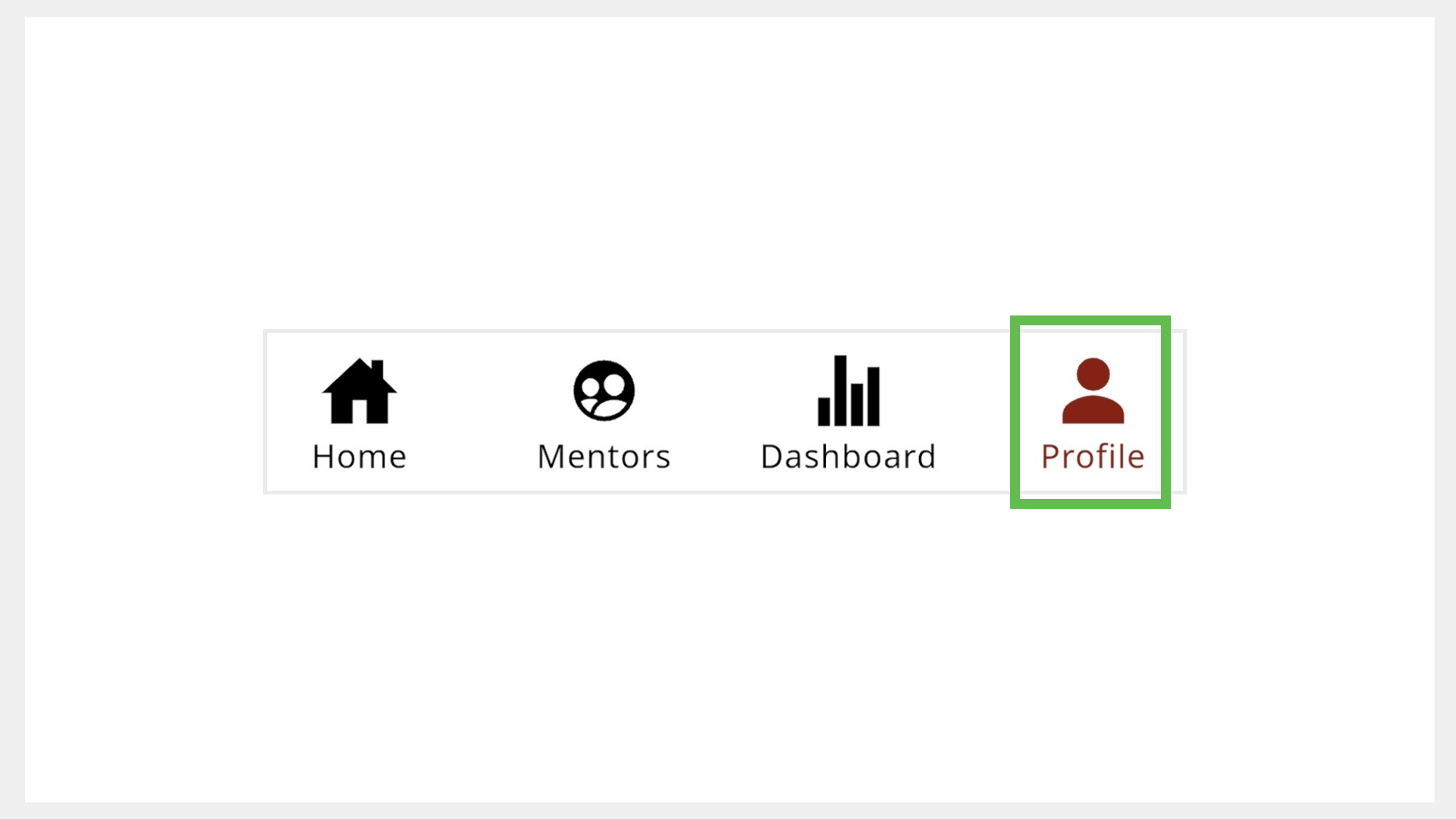
To view the Profile page, do one of the following actions:
- Do one of the following actions:
- Select Profile from the Application menu.
- Go to the Application menu
 and select Profile.
 - Go to the Profile tab.

Updating your Profile
note
You can use the application only after updating your profile.
To update your profile, do as follows:
- On the Profile page, click Edit profile.
- Optionally, to update your profile picture, do any one of the following actions:
- Click Add image and select the image.
- To remove an existing image, click Remove image.
- Enter the information in the following boxes:
- Your experience in years
- Tell us about yourself
- Education qualification
- To select your location, click the Select your location box and select the location from the menu.
- Select an option in the following boxes:
- Your role
- Your expertise
- Languages
- To cancel the selection, click the option again.
- To add a new option, do as follows:
- Click + Add new and enter the new option.
- Click Ok.
- To select all the options, turn on the toggle.
- Click Submit. The profile details are updated.

tip
