Starting a Session
You can host the Mentor session through your selected meeting platform.
note
- You can start the session only 10 minutes before the scheduled time.
- You can start the session anytime within the time allocated for the session.
You can start a session in one of the following ways:
- Using the Start button
- Using the session tile
- Using the shared link
Using the Start Button
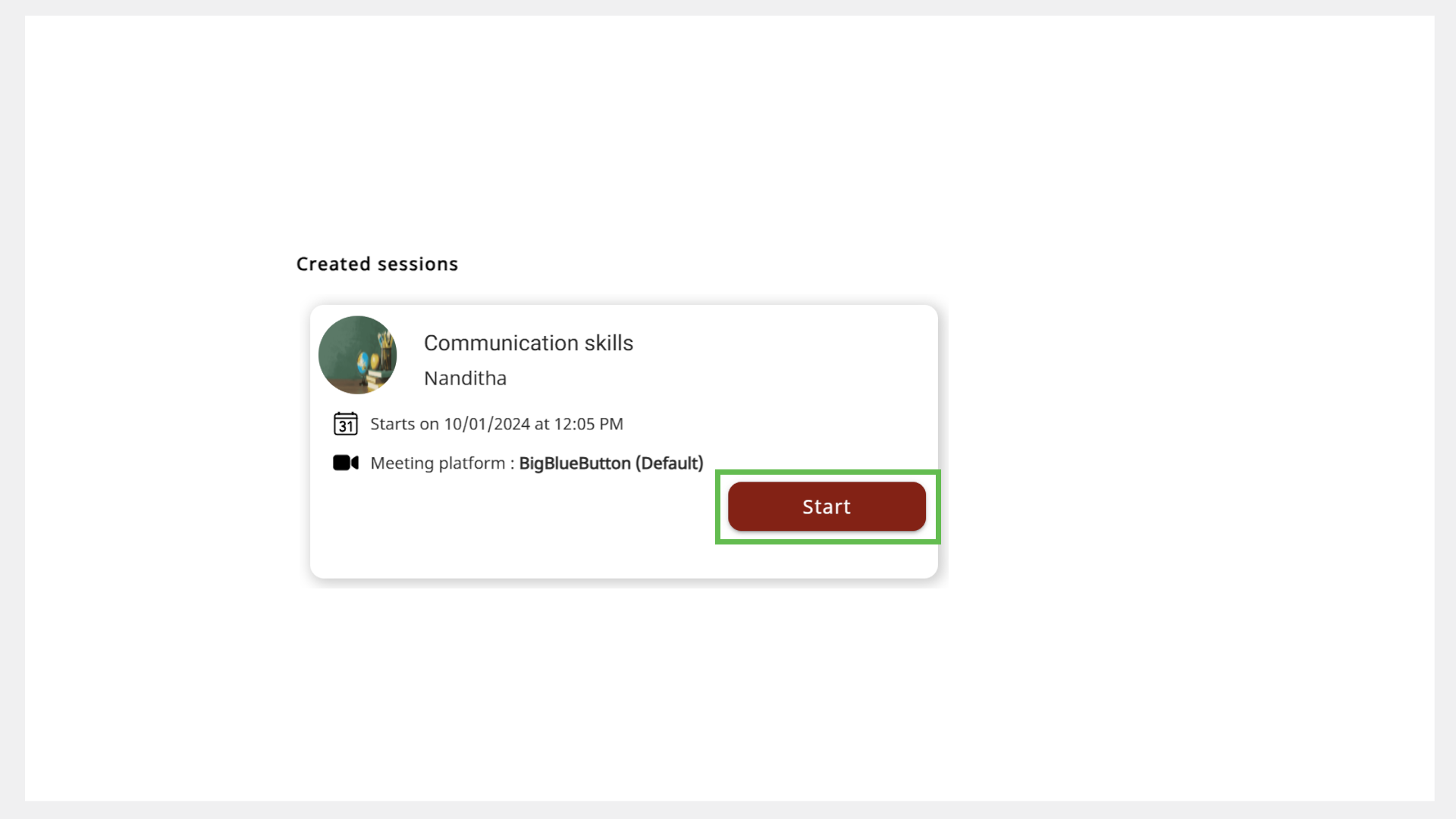
- On your Home page, go the Created sessions tab.
- Find the session.
- Click Start. The meeting window appears.
tip
If an error occurs, go back to Mentor and click Start.
Using the Session Details Page
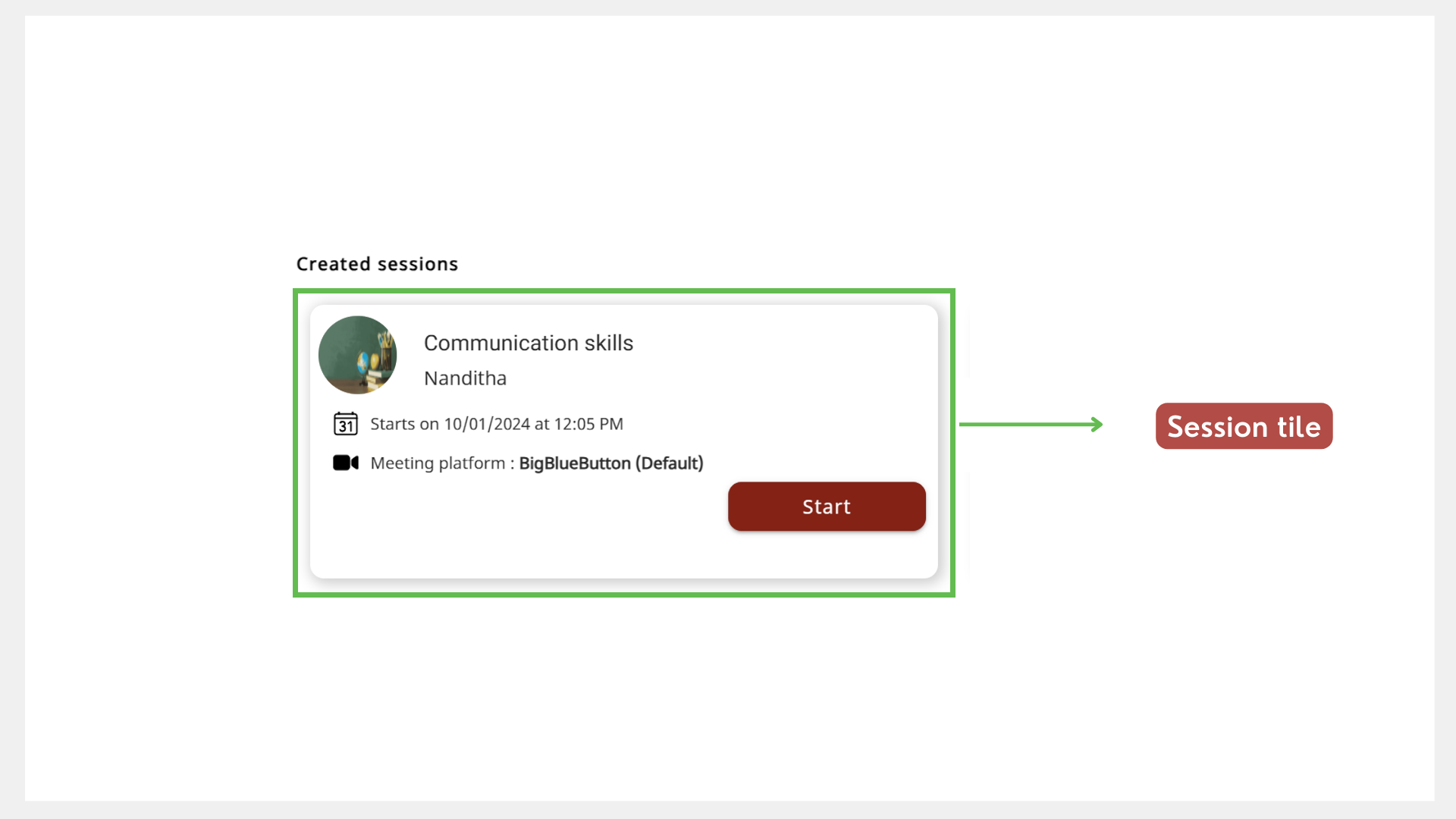
- On your Home page, go the Created sessions tab.
- Click the session tile to view the Session Details page.
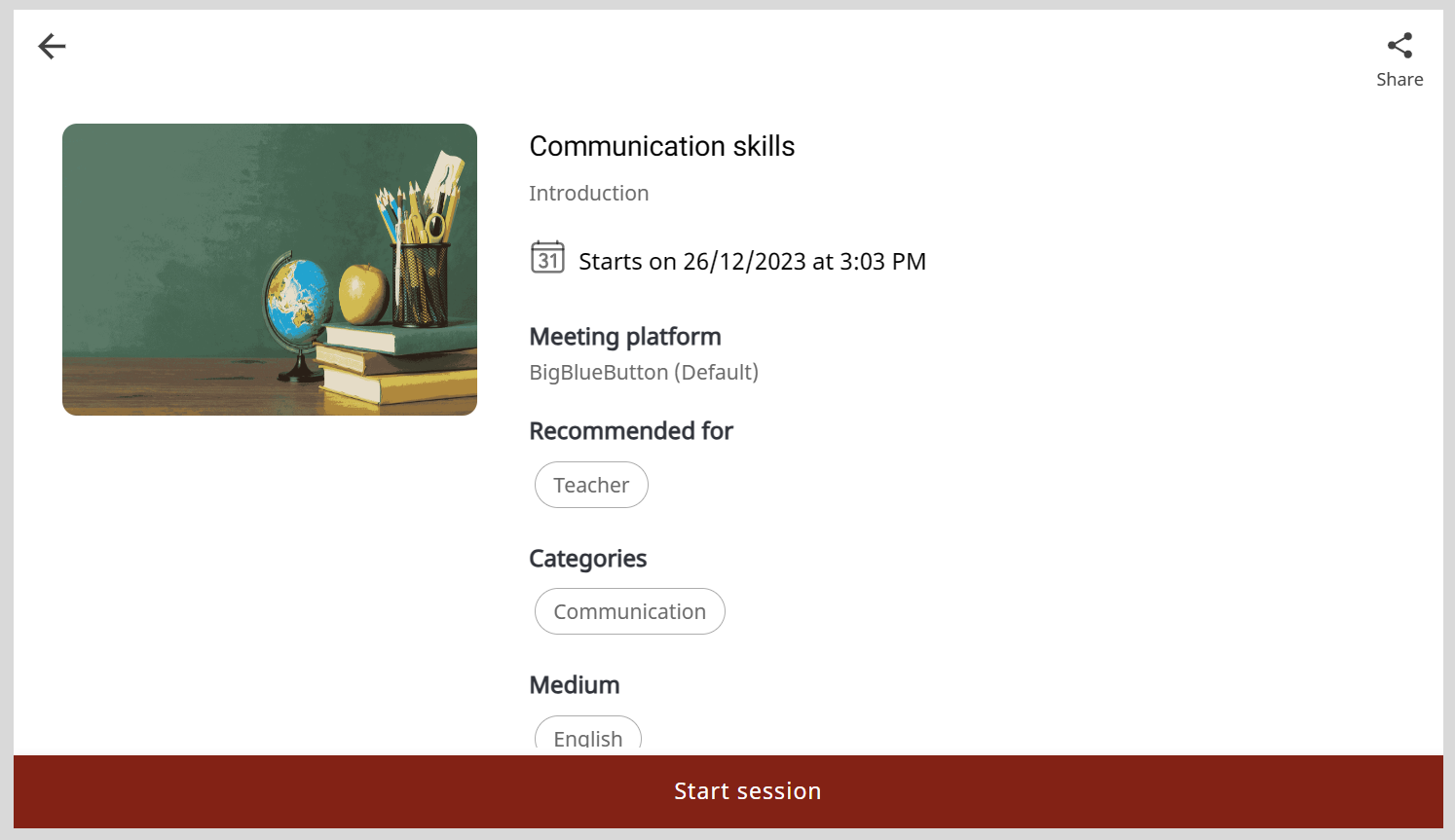
- Click Start session. The meeting window appears.
Using the Shared Link
- Click the session link which was shared with your contacts or on social media.
- Click Start session. The meeting window appears.
info
To configure the meeting settings, see any one of the following sections:
- BigBlueButton Tutorials. To view the tutorials, go to the Teachers menu and select Tutorials.
- Google Meet Support
- WhatsApp Help Center
- Zoom Support Center
Usage Guidelines
Unmute your microphone only when necessary.
Maintain a neat background and attire before you turn on your webcam.
Use respectful language while sharing any information.
If you leave a BigBlueButton meeting unintentionally (by pressing the back key on your phone or closing the meeting tab), go back to Mentor and click Start.