Enrolling for a Session
You can explore and sign up for Mentor sessions in your chosen domain or by a mentor of your choice.
note
- You cannot enroll for a session after the enrollment limit is reached. If you try to enroll after this limit is reached, a Session seats full message appears.
- You can enroll for an ongoing session, which appears as Live on the Home page.
You can enroll for a session in one of the following ways:
- Using the All sessions tab
- Using the mentor profile
- Using the Session details page
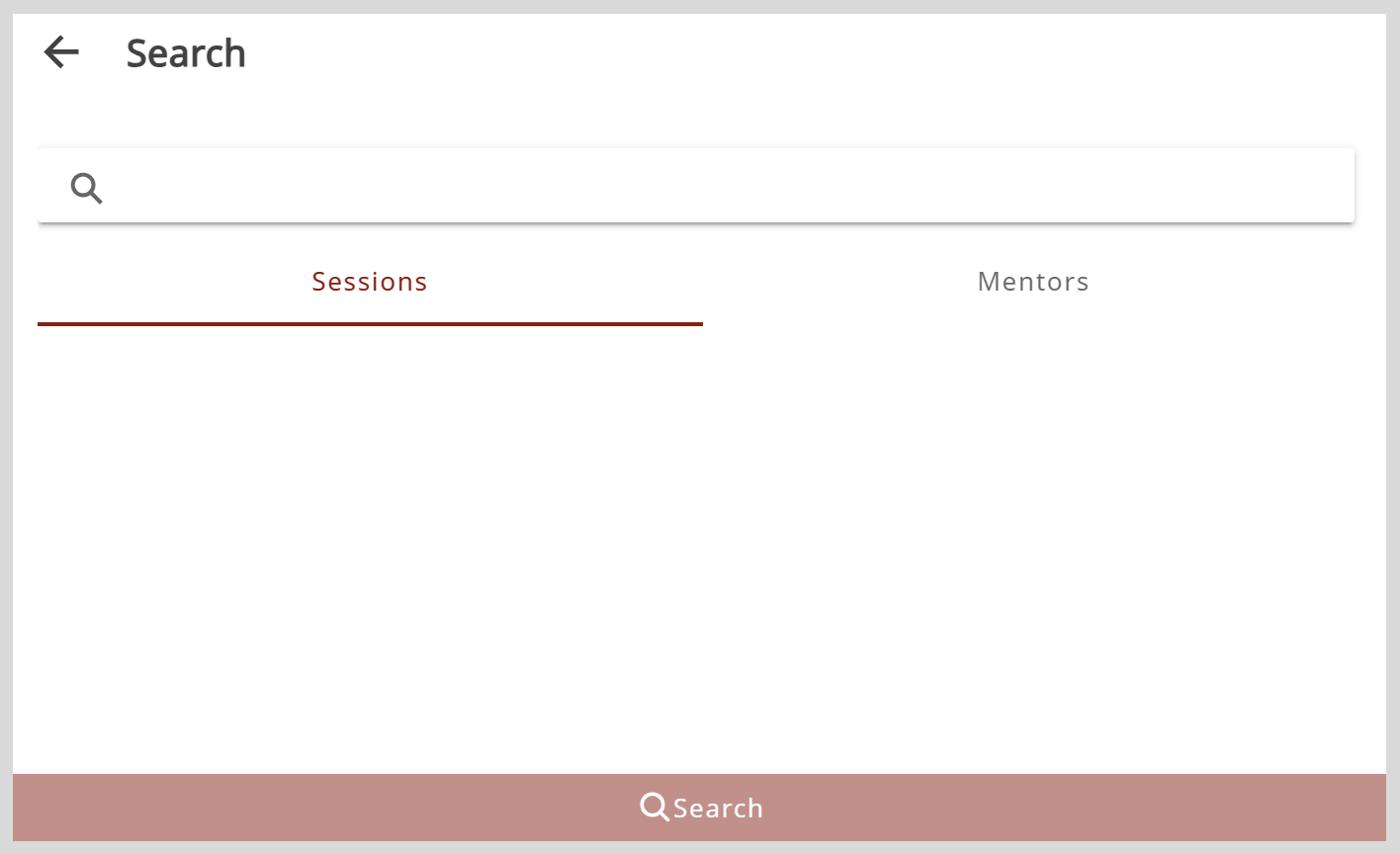
- Using the Search bar
Using the All Sessions Tab
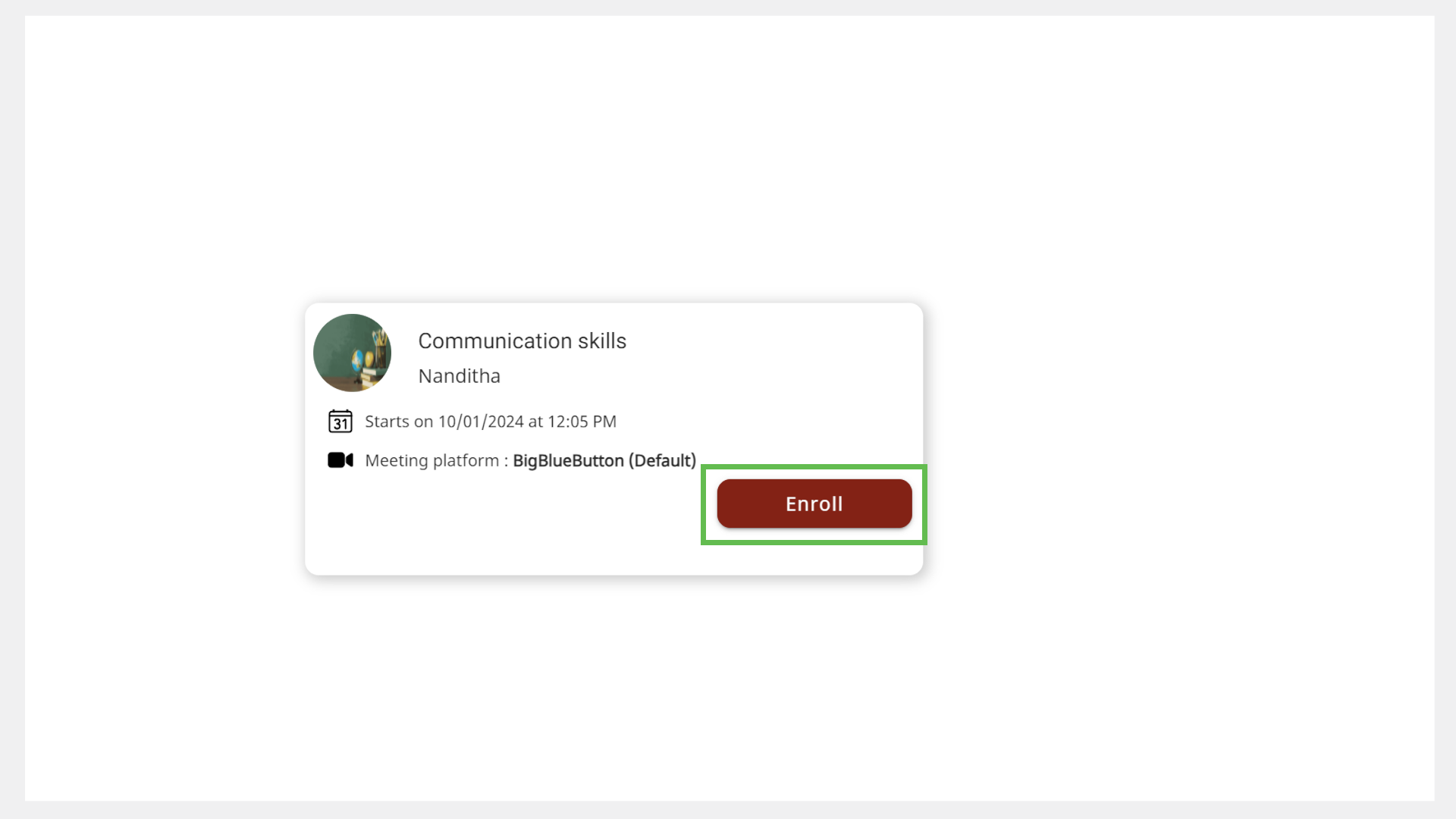
- On the Home page, go to the All sessions tab.
- Find a session of interest and click Enroll. The enrolled sessions are listed on the Enrolled sessions tab of the Home page.
Using the Mentor Profile
info
See Mentor Directory to learn more about accessing the mentor profile.
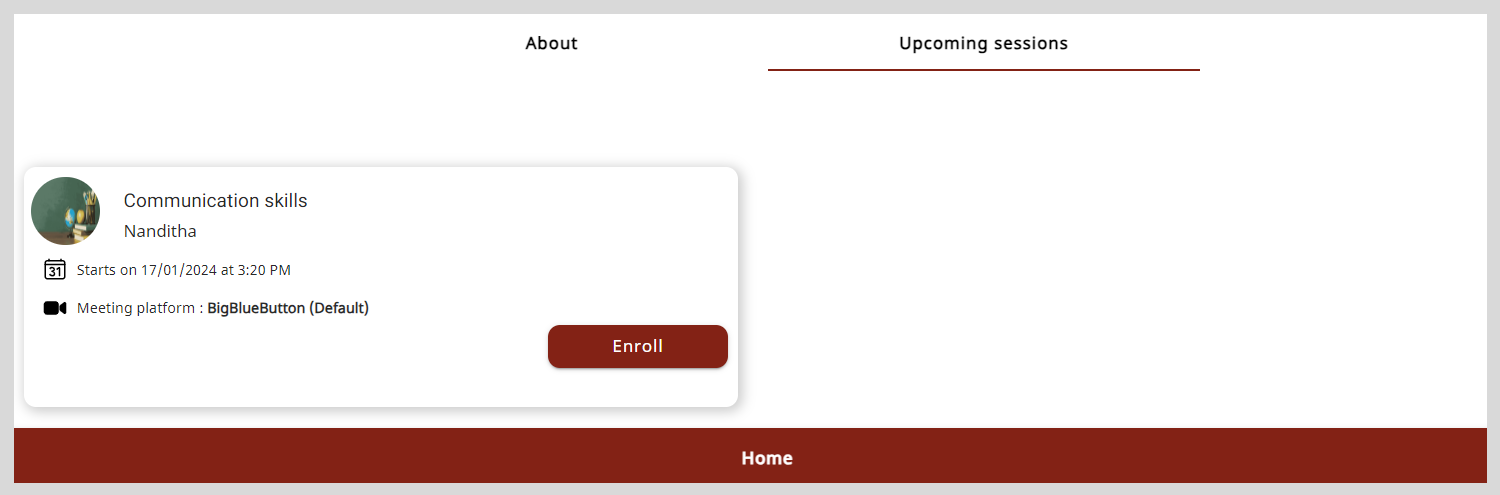
To enroll for a session using the mentor profile, do as follows:
- On the Mentor Profile page, go to the Upcoming sessions tab.
- Click Enroll. The enrolled sessions are listed on the Enrolled sessions tab of the Home page.
Using the Session Details Page
- Find a session from the All sessions tab or the Mentor Profile page.
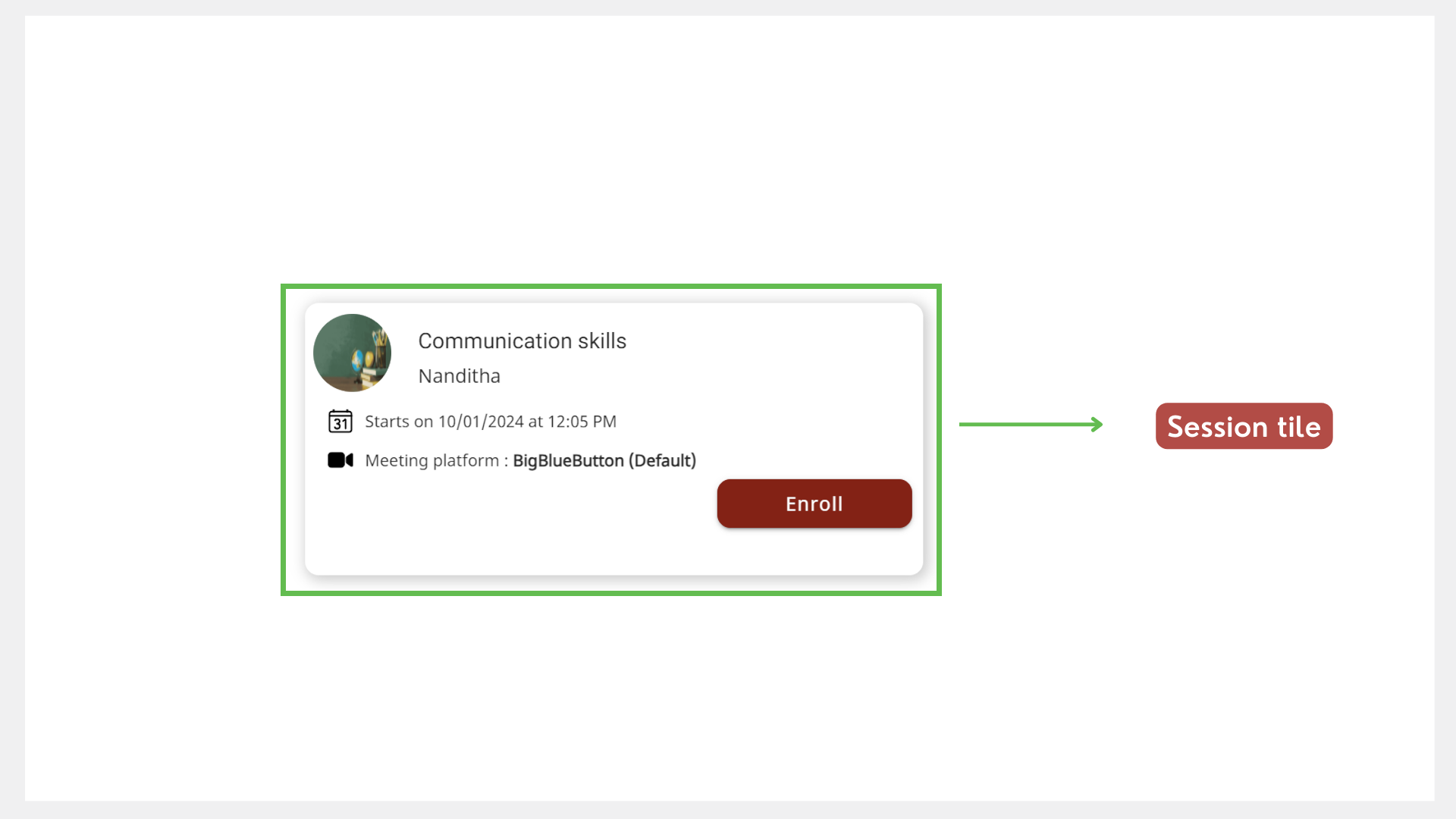
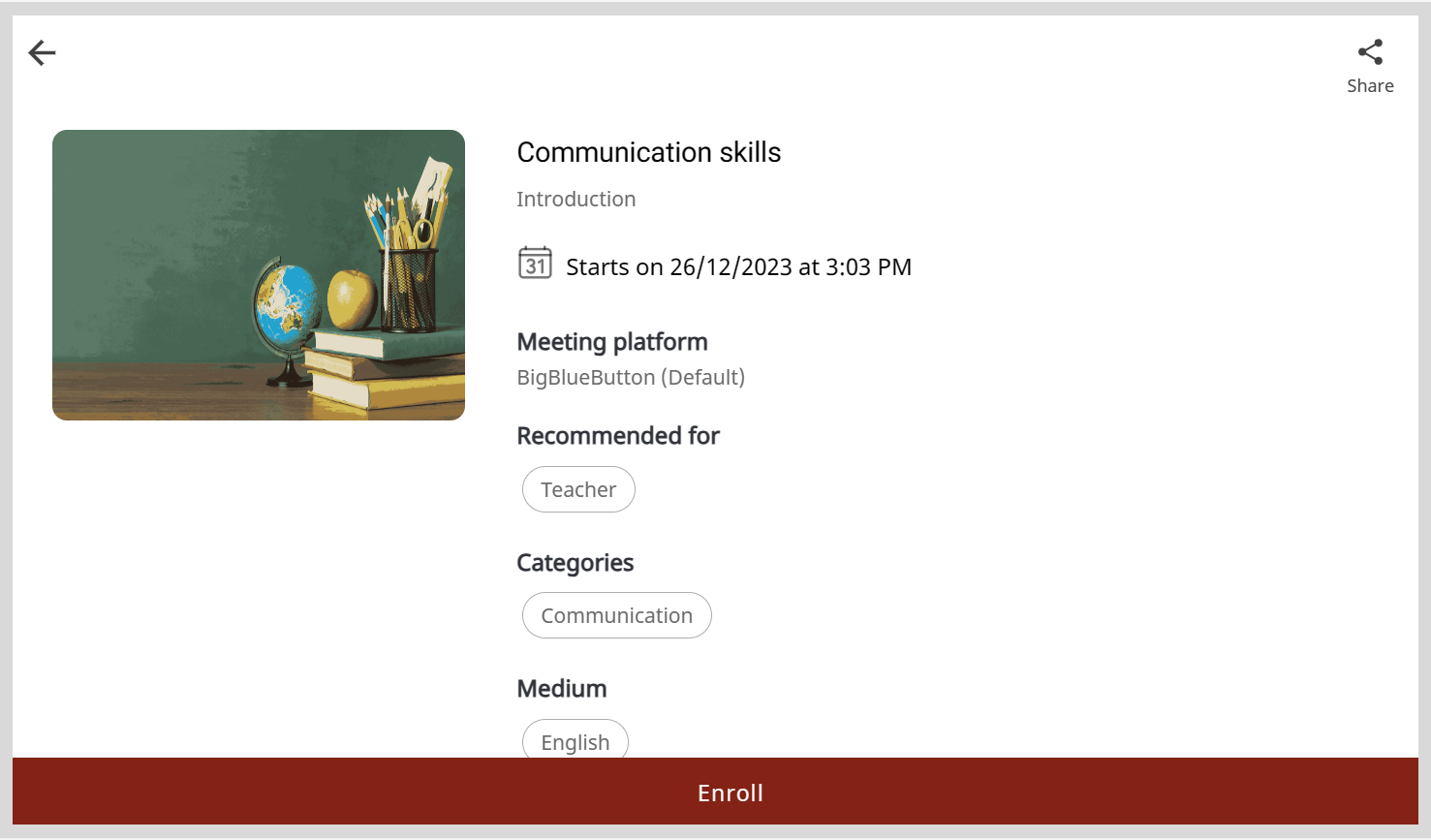
- Click the session tile to view the Session Details page.
- Click Enroll. The enrolled sessions are listed on the Enrolled sessions tab of the Home page.
Using the Search Bar
- In the Search bar of the Home page, click the Sessions tab.
- Type the session name and click the Search button.
- Click Enroll. The enrolled sessions are listed on the Enrolled sessions tab of the Home page.
Cancelling Your Enrollment
note
You can cancel your enrollment if the mentor has not started the session.
To cancel your enrollment, do as follows:
- On your Home page, go to the Enrolled sessions tab.
- Click the session tile.
- Click Unenroll.
- Click Unenroll on the confirmation dialog. The session is removed from the Enrolled sessions tab of the Home page.
